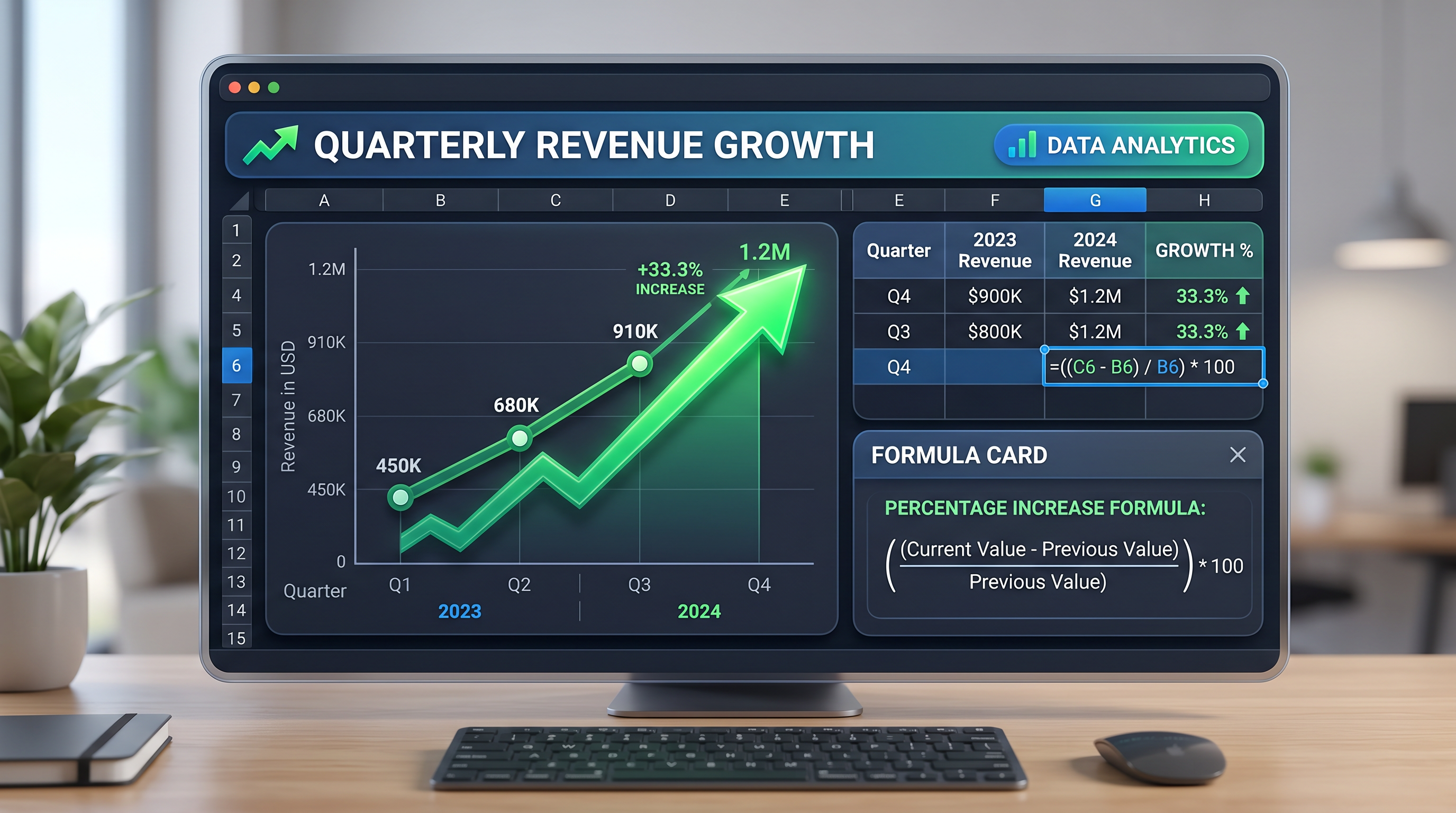
How to Calculate Percentage Increase in Excel: Formula, Steps & Google Sheets Guide
Picture this: Your quarterly sales soar from $10,000 to $15,000. Investors lean in, eyes sharp. "What's the growth rate?" You pause, smile, and rattle off "50%" without breaking a sweat. That's the quiet power of mastering percentage increase calculations in Excel. For office workers crunching reports, small business owners tracking revenue spikes, and finance students decoding spreadsheets, this skill isn't just handy—it's essential. Whether you're analyzing profit margins, monitoring expense hikes, or plotting student grades, knowing how to calculate percentage increase in Excel turns raw data into actionable insights.
In this guide, we'll demystify the Excel percentage increase formula, walk through crystal-clear steps with visual cues, explore real-world applications, and even cover Google Sheets percentage increase methods. By the end, you'll wield this tool like a pro, saving hours on reports and impressing stakeholders. Let's dive in.
What Is Percentage Increase? A Quick Foundation
At its core, percentage increase measures how much a value has grown relative to its original amount. It's the story behind the numbers: Did your team's productivity jump 20% after new training? Has rent crept up 8% year-over-year? The formula boils down to elegance: (New Value - Old Value) / Old Value, then multiply by 100 for the percentage.
Why does this matter? In business, it reveals trends at a glance. A small business owner might spot a 15% customer retention boost; a finance student could quantify market volatility. Excel automates this, handling thousands of rows effortlessly. Before we hit the keys, grasp this: Positive results signal growth; negatives indicate decline—perfect for calculating percentage change in Excel.
The Core Formula: =(New - Old) / Old * 100
Yes, that's it. Suppose old sales are in A2 ($10,000) and new in B2 ($15,000). In C2, enter =(B2 - A2) / A2. Excel spits out 0.5. Format as percentage (more on that soon), and boom—50%. Simple, yet transformative.
Step-by-Step: How to Calculate Percentage Increase in Excel
Fire up Excel. Blank sheet, cursor blinking. Here's your roadmap, with interface tips to avoid the "where's that button?" scramble.
- Enter Your Data: Click A1, type "Old Value". A2: 10000. B1: "New Value". B2: 15000. Watch the cells highlight as you tab—Excel's subtle nod you're on track.
- Select the Formula Cell: Click C1, label "% Increase". Now C2: the star.
- Type the Excel Percentage Increase Formula: Hit
=. Click B2 (new value lights up), type-, click A2, then/, click A2 again. Press Enter. Result: 0.5. - Format as Percentage: Select C2. Home tab > Number group > % button (looks like a pie slice). Or right-click > Format Cells > Percentage, two decimals. It snaps to 50.00%.
- Drag to Autofill: Hover bottom-right of C2 till + appears. Drag down for multiple rows. Excel copies the formula, adjusting references automatically.
Pro tip: Use absolute references like $A$2 if copying across columns. Interface savvy? The formula bar above glows blue during edits—your live preview.
Handling Errors Gracefully
Divide by zero? Old value blank? Wrap in IFERROR: =IFERROR((B2-A2)/A2, "N/A"). Keeps sheets clean.
Formatting and Visualization Tips
Raw numbers bore. Polish them. After calculating, select your % column. Home > Conditional Formatting > Color Scales. Greens for gains, reds for drops—stakeholders scan and grasp instantly.
- Custom Formats: Right-click > Format Cells > Custom:
0.00% "("▲")"adds up-arrow flair. - Charts: Highlight data, Insert > Column Chart. % increases pop as bars racing upward.
- PivotTables: For big data—Insert > PivotTable, drag % field to Values. Summarize growth by month or region.
Imagine presenting to the boss: A dashboard where sales growth glows 25%, expenses dip -5%. That's not a spreadsheet; it's a narrative.
Percentage Growth Formula Excel: Real-World Scenarios
Sales Tracking for Small Businesses
Monthly sales: A2:A13. Next month B2:B13. C2: =(B2-A2)/A2, drag down. Average growth? =AVERAGE(C2:C13). Spot trends: Was that holiday spike 40% sustainable?
Expense Analysis for Office Pros
Q1 utilities $5,000 (A2), Q2 $5,500 (B2). Formula reveals 10% creep. Chain it: =PRODUCT(1+C2:C5)-1 for compounded annual growth.
Academic Grades for Finance Students
Midterm 75 (A2), final 90 (B2). Improvement: 20%. Track cohort averages for reports.
Google Sheets Percentage Increase: Seamless Alternative
Excel's cousin, Google Sheets, mirrors the process but shines in collaboration. Open sheets.google.com, new sheet.
- A1: "Old", A2: 10000. B1: "New", B2: 15000.
- C2:
=(B2-A2)/A2. Enter—same 0.5. - Format: Select C2, toolbar % icon. Or Format > Number > Percent.
- Autofill: Blue square bottom-right, drag.
- Bonus:
ARRAYFORMULAfor columns: C2=ARRAYFORMULA(IF(A2:A<>"", (B2:B-A2:A)/A2:A, "")).
Sheets adds sparkline charts: =SPARKLINE(C2:C10, {"charttype","column"}). Share live links—team edits in real-time.
Pitfalls to Dodge and Pro Tips
- #DIV/0! Horror: Use
=IF(A2=0, "N/A", (B2-A2)/A2). - Decimals Sneaking In: Always format post-formula.
- Negative Growth: Formula handles it—shows decline as negative %.
- Power User: Combine with VLOOKUP for dynamic old/new pulls.
FAQ: Your Burning Questions Answered
What's the difference between percentage increase and change?
Increase assumes growth (new > old); change is neutral, same formula.
How do I calculate percentage growth formula Excel for multiple periods?
Geometric mean: =((B12/A2)^(1/10)-1) for 10 periods.
Can I use this in Excel for Mac or Online?
Yes—formulas identical across versions.
Google Sheets vs. Excel: Any formula tweaks?
Negligible; Sheets leans script-friendly.
You've got the formula, the steps, the flair. Next report? Transform data into decisions. For instant calculations without spreadsheets, try our dedicated Percent Increase Calculator—plug in numbers, get results, export ready. Level up your game today.