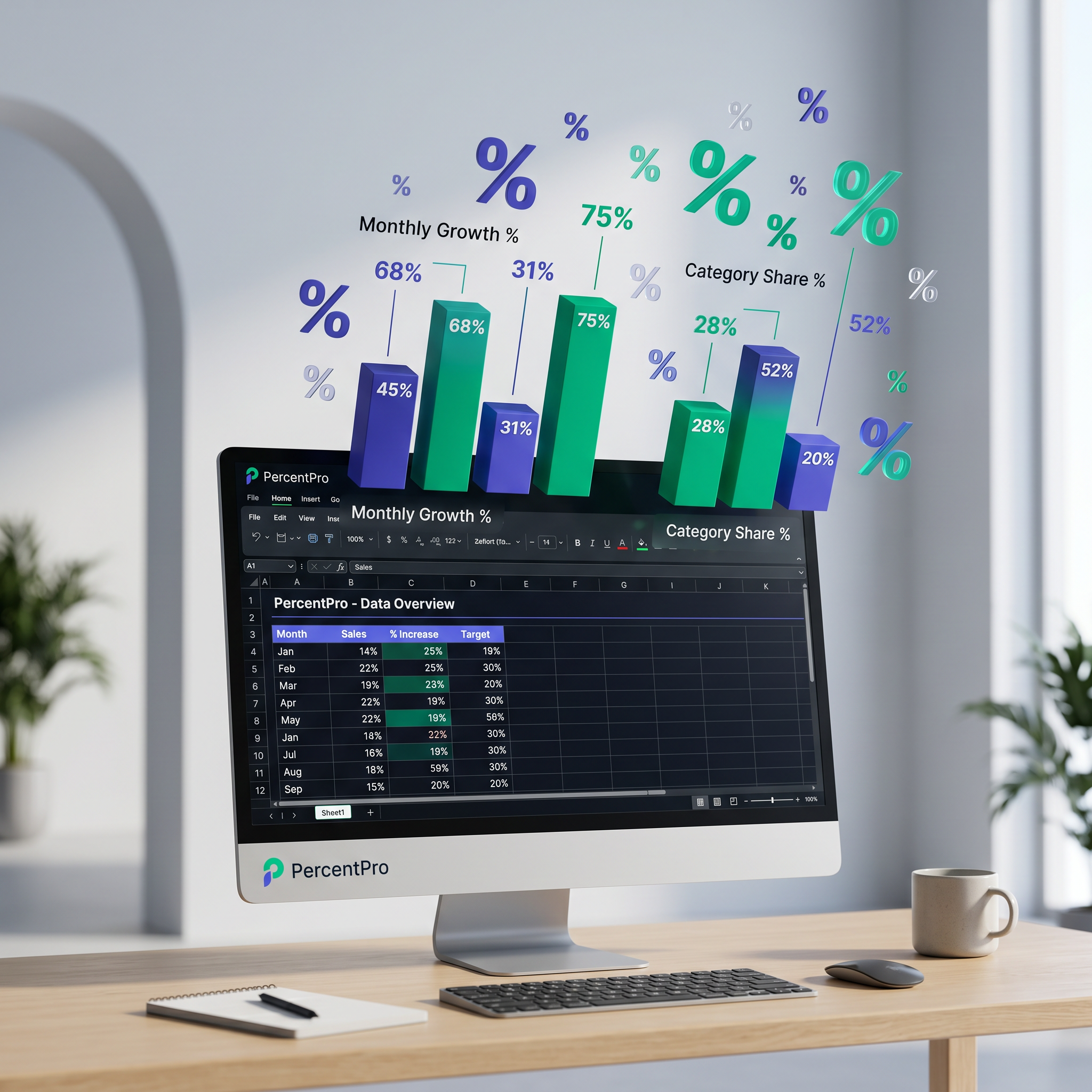
Excel Formula for Percent of Total: Ultimate Guide to Calculate Percentages Like a Pro
Imagine staring at a spreadsheet crammed with sales figures, expenses, or test scores, feeling overwhelmed by the raw numbers. What if you could instantly reveal which item dominates the budget, which salesperson crushes the targets, or which student leads the class—all with a simple percentage? That's the magic of the Excel formula for percent of total. It's not just a calculation; it's your secret weapon for turning data chaos into crystal-clear insights.
Whether you're an office worker juggling reports, a data analyst diving deep into metrics, a student acing projects, or a small business owner tracking profits, mastering how to calculate percentage of total in Excel unlocks efficiency like nothing else. In this ultimate guide, we'll demystify the Excel percent of total formula, walk through real-world examples, and equip you with pro tips—including PivotTables and charts—to show percentages in Excel that wow. Ready to level up? Let's dive in.
Why Percent of Total Calculations Are a Game-Changer in Excel
Percentages breathe life into numbers. A $5,000 expense sounds big until you see it as 2% of your total budget—suddenly, it's negligible. This relative view drives smarter decisions: reallocating resources, spotting trends, or benchmarking performance.
In Excel, the beauty lies in automation. No more manual math prone to errors. One formula, copied across rows, reveals proportions across datasets. For office pros, it's quarterly reports in minutes. Analysts use it for KPIs. Students simplify group projects. Business owners forecast cash flow. And the best part? It's beginner-friendly yet scales to complex analyses.
The Core Excel Formula for Percent of Total: =Part/Total * 100
At its heart, the excel formula for percent of total is deceptively simple: = (individual value / grand total) * 100. But Excel handles the multiplication smartly—format as percentage, and it auto-adds the % sign and decimal magic.
Step-by-Step: Building Your First Formula
- Select a cell next to your data (e.g., B2 for percentage of A2).
- Type
=A2/$A$10(we'll explain $ later). - Press Enter. Raw decimal appears (e.g., 0.25).
- Right-click the cell > Format Cells > Percentage. Boom—25%!
- Copy the formula down the column. Excel adjusts for each row.
Pro tip: For quick wins, hit Ctrl+Shift+% after entering the formula to format instantly. Need an online helper? Check getpercentconvert.com for instant calculations without opening Excel.
Absolute Cell References: The $ Sign Superpower
Copying formulas is Excel's killer feature, but without absolute references, your calculate percentage of total in Excel breaks. Enter the $: $A$10 locks both column and row. A$10 locks row only. $A10 locks column.
Why? When dragging formulas, relative refs (A10) shift (to A11, A12). Your total must stay fixed. F4 key toggles $ as you type—F4 once for $A$10, twice for A$10, etc.
Picture this: Your grand total in A10. Formula in B2: =A2/$A$10. Drag to B20—each row divides by A10, not shifting totals. Perfection.
Real-World Worked Examples: From Expenses to Sales Glory
Example 1: Monthly Expenses Breakdown
Data in A1:B6:
- A1: Rent, B1: 2000
- A2: Utilities, B2: 300
- A3: Supplies, B3: 150
- A4: Marketing, B4: 500
- A5: Salaries, B5: 2500
- A6: Total, B6: =SUM(B1:B5) → 5450
In C1: "Percent". C2: =B2/$B$6, format %. Drag down. Results: Rent 36.7%, Salaries 45.9%. Insight: Labor eats half your budget—time to optimize?
Example 2: Sales Team Performance
Quarterly sales: A2:A6 (Rep names), B2:B6 (figures: 12000, 15000, 8000, 20000, 11000). B7: =SUM(B2:B6)=66000.
C2: =B2/$B$7. Top rep? 30.3%. Use conditional formatting (Home > Color Scales) to highlight stars—green for >20%.
Example 3: Student Grades Percentile
Scores A2:A11, total A12=SUM. Percent in B2: =A2/$A$12. Class leader shines at 28%. Perfect for reports.
How to Show Percentage in Excel: Formatting Mastery
Formulas give decimals; formatting adds polish. Methods:
- Quick Format: Select range, Ctrl+Shift+%.
- Custom: Ctrl+1 > Percentage > 2 decimals.
- Icons: Home > Number > % button.
- Precision: For 0.01%, use
=TEXT(formula,"0.00%").
Sum check: Percent column should total 100%. If not, circular refs or blanks—hunt with Formulas > Error Checking.
Advanced: PivotTables for Dynamic Percent of Total
For big data, formulas strain. PivotTables shine. Insert > PivotTable. Drag fields: Rows (categories), Values (sum). Right-click value > Show Values As > % of Grand Total. Instant, refreshable percentages—no formulas needed. Filter by date? Drag to Filters. Game-changer for analysts.
Charts That Pop: Visualizing Percent of Total
Numbers tell; charts sell. Select category + percent columns. Insert > Pie Chart. Data Labels > Percentage. Or 100% Stacked Bar for comparisons. Pro move: Pie of Pie for sub-breakdowns. Your dashboard now breathes insights.
Pitfalls to Dodge and Pro Hacks
- Zero Division: Use
=IF($B$6=0,0,B2/$B$6). - Dynamic Totals: =SUBTOTAL(9,B:B) for filtered views.
- Missing %: Ensure grand total includes all.
- Power Users: XLOOKUP for flexible parts, or Power Query for ETL.
Quick calc needed? Getpercentconvert.com handles it offline-free.
Wrap-Up: Own Your Data with Percent Power
From the humble Excel percent of total formula to PivotTable prowess, you've got the arsenal. Next report? Watch jaws drop as percentages unveil truths hidden in totals. Practice on your data today—those insights won't wait. Excel awaits your command.